
I never used to have a proper routine for keeping my PC drivers updated. I would usually leave them alone until something stopped working or a game started behaving strangely. Then I would spend time trying to figure out which driver needed attention.
That approach worked for a while, but it was not something I wanted to keep doing. My PC has several hardware components, and checking each one manually was easy to forget. I wanted a simple way to see what needed an update without spending an evening searching through manufacturer websites.
That is when I started using Driver Booster. Instead of checking drivers one at a time, I could scan my PC from one place and decide which updates were worth installing. Here is how I use it to keep my drivers in order.
What I Found Useful in Driver Booster?
Driver Booster is a Windows utility that scans installed hardware and checks for available driver updates. One of the things that stood out to me was the size of its driver database. Driver Booster 14 covers more than 23 million drivers, so it is not limited to the most common PC components. That broader coverage can be useful when a computer has older hardware or less common devices.
The program also does more than look for one driver version. Its multi-version scanning system can identify both the latest and most stable available versions. That matters to me because I do not always want to install the newest driver immediately. Sometimes I would rather stick with a stable release, especially when my current setup is working well.
Why I Started Keeping a Driver Routine?
I learned that I did not need to wait for a problem before checking my drivers. A PC has many devices working in the background, including the graphics card, sound hardware, network adapter, Bluetooth devices, printers, and other peripherals.
Each of these can depend on its own driver. The difficult part was remembering all of them. Even when I knew that a graphics driver needed an update, I could easily overlook other hardware.
Manual updating also meant visiting different websites, finding the correct hardware page, downloading the right file, and installing it. I did not mind doing this for a specific problem, but it was not practical as a regular habit. Driver Booster gave me a single place to handle these checks.
Key Features of Driver Booster
Here are some of the amazing features of Driver Booster which I found quite useful.
Large Driver Database
Driver Booster has a database of more than 23 million drivers. It can find drivers for a wide range of hardware. These include everything from graphics cards to network adapters and audio devices to chipsets, printers, and other PC components.
Multi-Version Driver Scanning
Instead of showing only the newest driver, Driver Booster can scan multiple available versions. It can identify both the latest and the most stable version, giving you more control over which driver you want to install.
Automatic Driver Updates
Driver Booster can scan your PC and identify outdated, missing, or problematic drivers. You can also set up scheduled scans and allow driver updates to run in the background when the PC is idle.
Offline Driver Updater
The Offline Driver Updater is useful when a PC has limited or no internet access. It can help prepare and install required drivers after a fresh Windows installation or on an offline computer.
Gaming and System Repair Tools
Driver Booster also includes tools for common PC problems, such as audio failures, network issues, incorrect screen resolution, and device recognition errors. Gaming-focused features can also help with game-ready drivers and related runtime problems.
Key Steps to Use Driver Booster
I now follow a simple process instead of updating drivers whenever I remember.
Run a Driver Scan
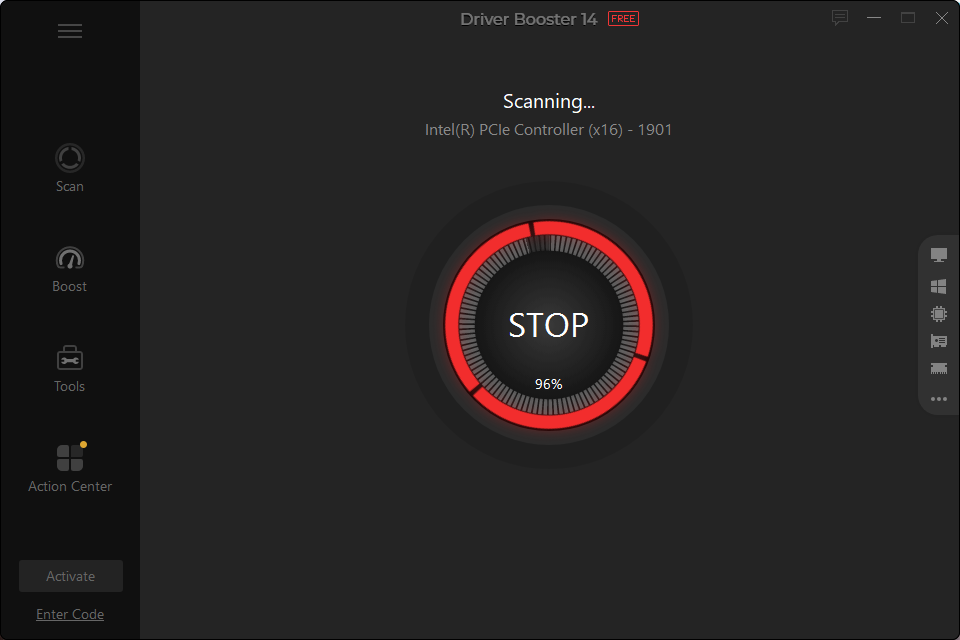
Open Driver Booster and start a scan. The software checks your installed hardware and compares the drivers with its available database.
Review the Results
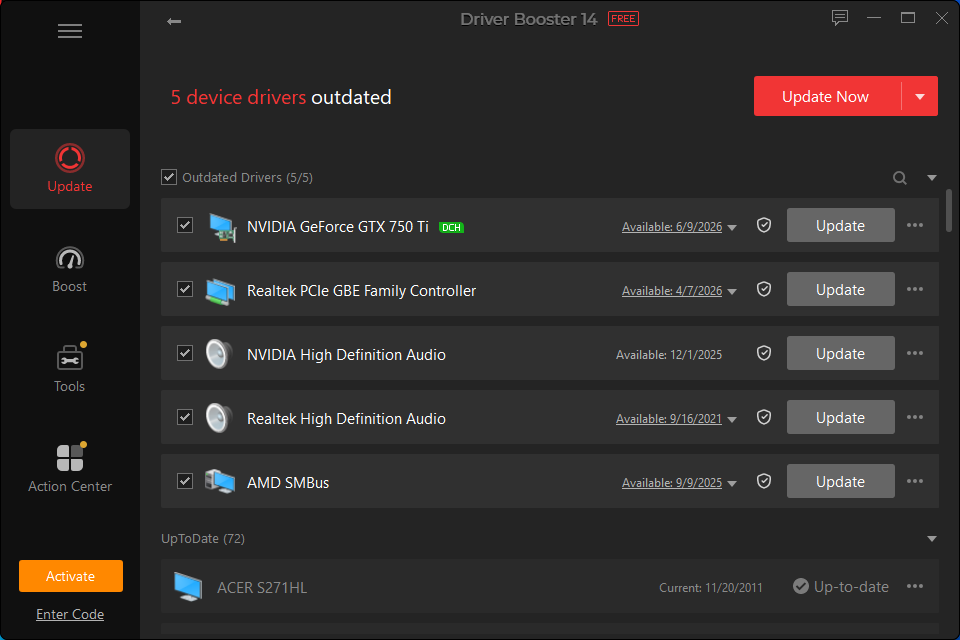
Look through the detected drivers instead of updating everything immediately. Check which drivers are outdated or causing problems and select the ones you want to update.
Choose and Install a Driver
If multiple driver versions are available, compare the options and select the version you prefer. Start the installation and let Driver Booster complete the process.
Restart and Test Your PC
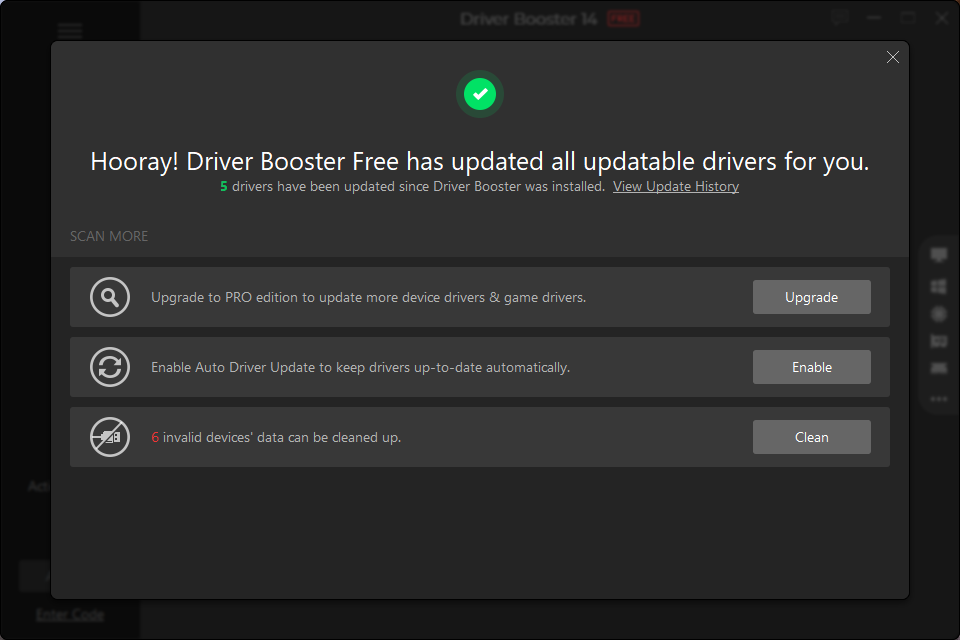
Restart Windows when needed after the installation. Then check the affected hardware, such as your network, sound, display, or games, to see if the problem has been resolved.
What Could Be Improved?
While Driver Booster offers many useful driver management tools, the large number of detected updates can sometimes feel overwhelming. New users may also need time to understand which driver version to choose. Clearer explanations for each recommended update could make the selection process easier and more straightforward.
Final Thoughts
Keeping PC drivers updated used to be something I dealt with only when a problem appeared. Now I treat it as a small part of regular PC maintenance. Driver Booster makes that routine easier by putting driver scanning, version selection, installation, backup, and restore tools in one place. Its 23-million-plus driver database also gives it broad coverage across different types of hardware.
I still do not update drivers blindly. I check what is being changed and pay more attention to hardware that matters to me. But with this driver updater handling the searching and scanning, keeping my PC drivers up to date has become a much easier routine.
