
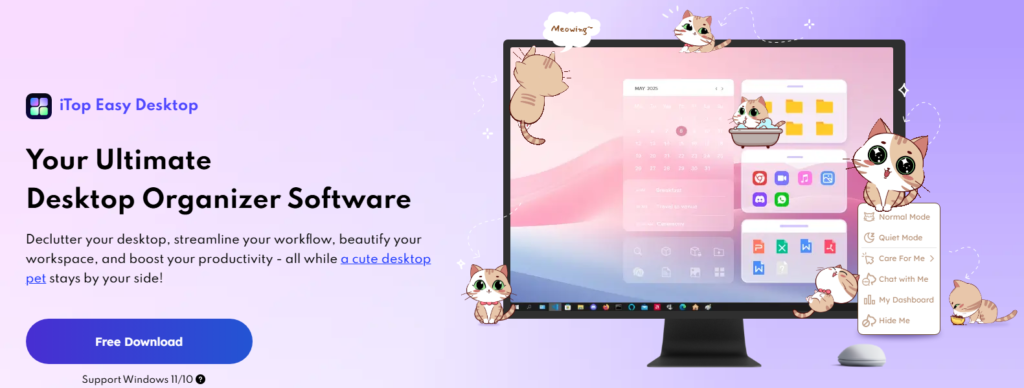
My desktop didn’t turn into a mess overnight. The clutter built up gradually. A screenshot I planned to use later stayed there. Then I downloaded a PDF, created a folder for a new project, and added a few shortcuts for programs I expected to open regularly. Every time something new appeared, I told myself I would organize it later.
That time rarely came. Before long, my desktop was filled with icons, and finding one specific file meant looking through everything first. Cleaning it helped for a day or two, but the same problem always returned.
That made me realize I didn’t just need to clean my desktop. I needed a better way to manage the files that kept arriving there. That’s where I found iTop Easy Desktop useful.
Key Features of iTop Easy Desktop That Helped
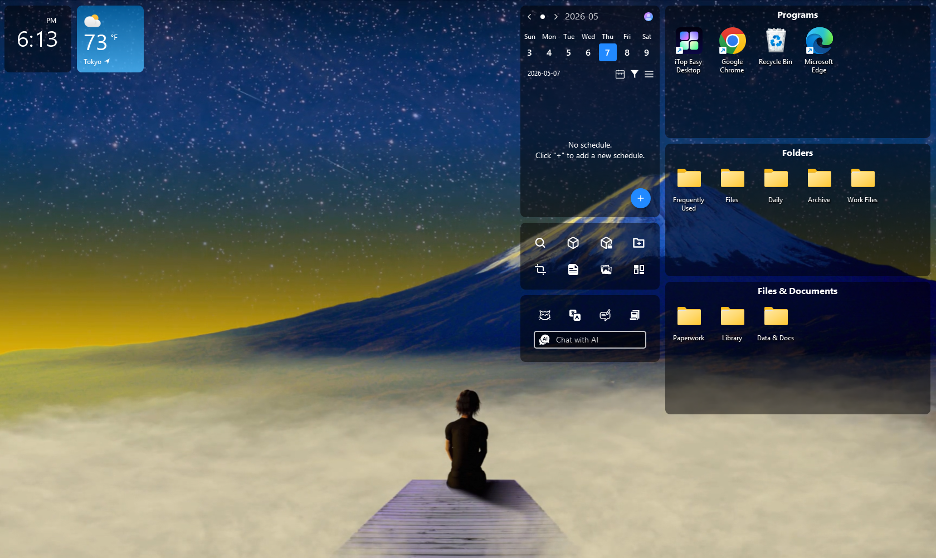
Here are a few features that helped me to improve my desktop organization:
One-Click Auto-Organization
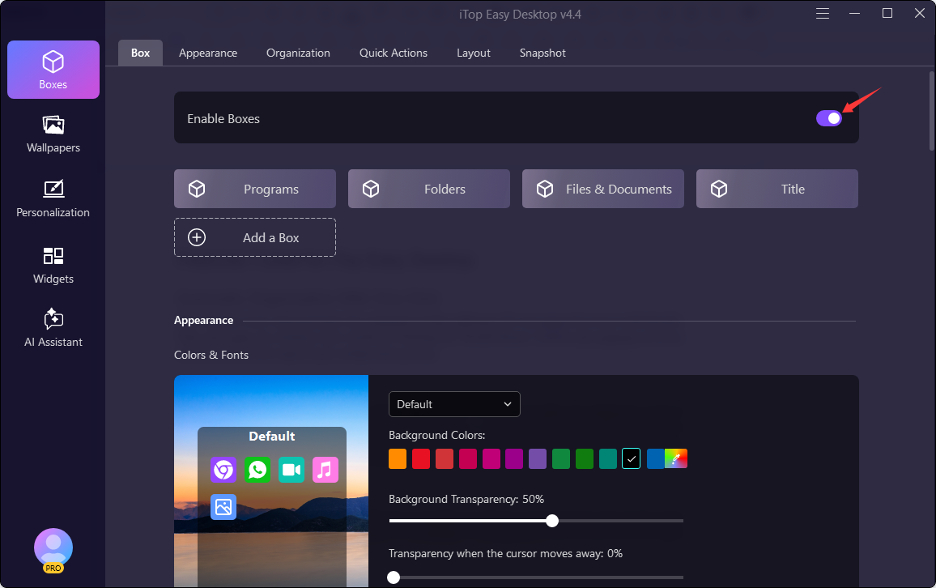
The first feature I turned to was one-click auto-organization. Instead of moving every icon manually, iTop Easy Desktop can sort desktop items into groups such as Documents, Images, Applications, and Folders. This gave me a much cleaner starting point without spending a long time dragging files around.
For me, this was useful because the hardest part of cleaning a messy desktop is often getting started.
Custom Desktop Boxes
Once the basic sorting was done, I wanted the layout to match my actual workflow. iTop Easy Desktop lets me create custom boxes for different types of files. I could have separate areas for current projects, screenshots, download, or other groups I regularly use.
The important thing for me was keeping the number of boxes under control. Too many sections would only create another form of clutter.
Quick Search and Folder Portal
Search became another part of my new routine. Instead of keeping a file on my desktop just because I might need it later, I could use the built-in search bar to locate a file or folder by name.
Folder Portal was also useful for folders I opened frequently. It gives direct access to the contents of a PC folder from the desktop, working almost like a small File Explorer window.
That meant I didn’t need to fill my desktop with shortcuts just to keep important folders close.
Double-Click Hide
Screen sharing was another reason my desktop clutter bothered me.
Before a meeting or recording, I sometimes had to move things around just to make my screen look presentable. iTop Easy Desktop has a Double-Click Hide Everything option that lets me hide the desktop boxes with a double-click.
Auto Save Layouts
I also didn’t want to spend time creating a layout and then lose it. Auto Save Layouts works like a snapshot of the desktop arrangement. It gives me a way to keep a setup I like and return to it later.
Discover New Files
One feature I found useful for stopping the clutter cycle was Discover New Files. Recently added desktop files are also easier to spot. This gives me a quick visual reminder that something new needs to be sorted. Instead of noticing a pile of new files several days later, I can deal with them as they appear.
PawPal Virtual Desktop Pet
PawPal adds a small touch of fun to the desktop with its virtual pet. It runs quietly in the background without getting in the way of regular tasks. I liked the idea of having an animated cat around while working, although the current character selection is still limited.
Steps I Used for iTop Easy Desktop
Here are key steps that I followed while using iTop Easy Desktop
- Install and Launch
I started by downloading and installing iTop Easy Desktop on my Windows PC. After launching the program, I could begin working with the desktop instead of manually moving everything first.
- Auto-Organize the Desktop
The next step was to run the automatic organization feature. This grouped the existing desktop items into boxes, giving me a much better starting point than the original collection of scattered icons.
- Create My Own Boxes
After the automatic sorting, I created a few boxes around my regular workflow. I kept the structure simple and only added sections that I would actually use. This helped me avoid replacing one cluttered desktop with a desktop covered in too many boxes.
- Save the Layout and Manage New Files
Once everything was arranged, I used Auto Save Layouts to keep the setup.
From there, I could watch for the red marker on new files and place them into the right box instead of letting them pile up again. If I needed a clean screen for a meeting, I could also use Double-Click Hide.
What Could Be Improved?
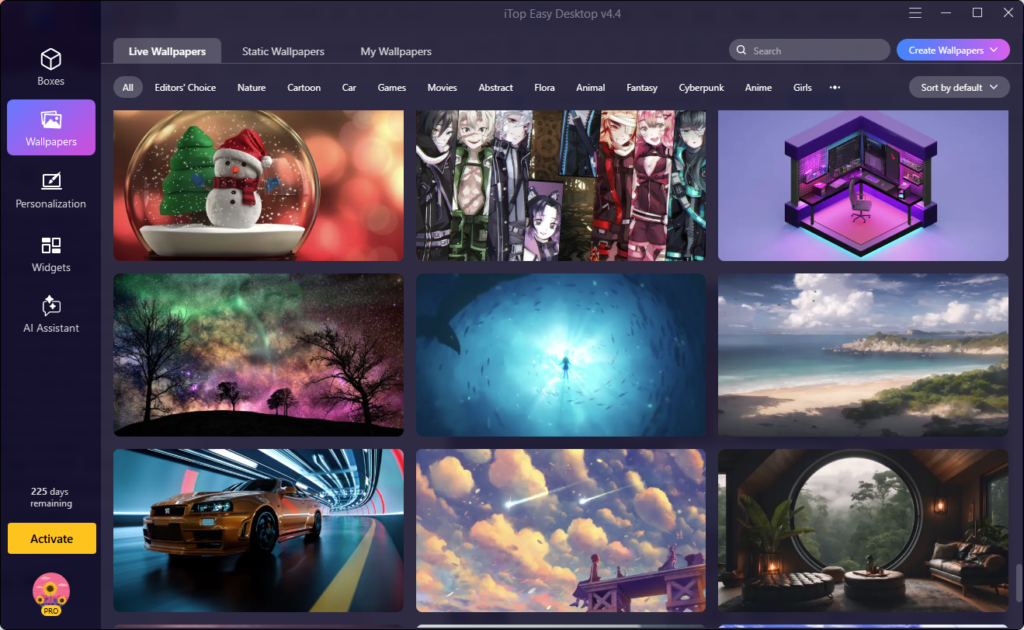
My overall experience was positive, but I did notice a few areas that could be better. If a desktop already contains hundreds of files, the first setup can take some planning before everything feels properly arranged. PawPal is a fun addition, but its current selection of characters is still fairly limited. More choices would make this feature more interesting as it develops.
Final Thoughts
This desktop organizer software helped me change that routine. Auto-Organization gave me a quick starting point while Double-Click Hide came in handy whenever I needed a clean screen. The biggest change wasn’t having a perfect desktop. It was breaking the habit of using the desktop as a dumping ground.
Once I had a place for things to go, keeping the clutter under control became much less of a recurring chore.
